# Navicu Odoo DevOps
## Git Branches
2 Branches has been defined
- UAT - Pre Production stage
- MAIN - Production
All commits must go to **UAT branch first**, wait until CI/CD has succeeded and then try changes on admin.uat.navicu.com.
After successfully testings on UAT **merge changes into MAIN branch**
## Portainer
Jacidi uses Portainer to manage docker containers.
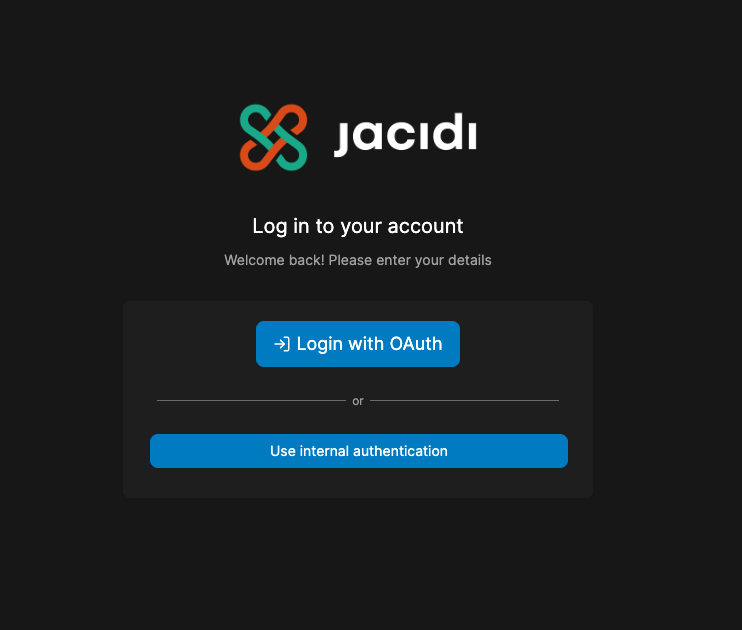
Go to [https://portainer2.jacidi.com](https://portainer2.jacidi.com) and log in with provided credentials using **Login with Oauth**
[](https://books.jacidi.com/uploads/images/gallery/2023-05/image-1683802120688.png)
Once inside select BCN Datacenter Environment
[](https://books.jacidi.com/uploads/images/gallery/2023-05/image-1683802183071.png)
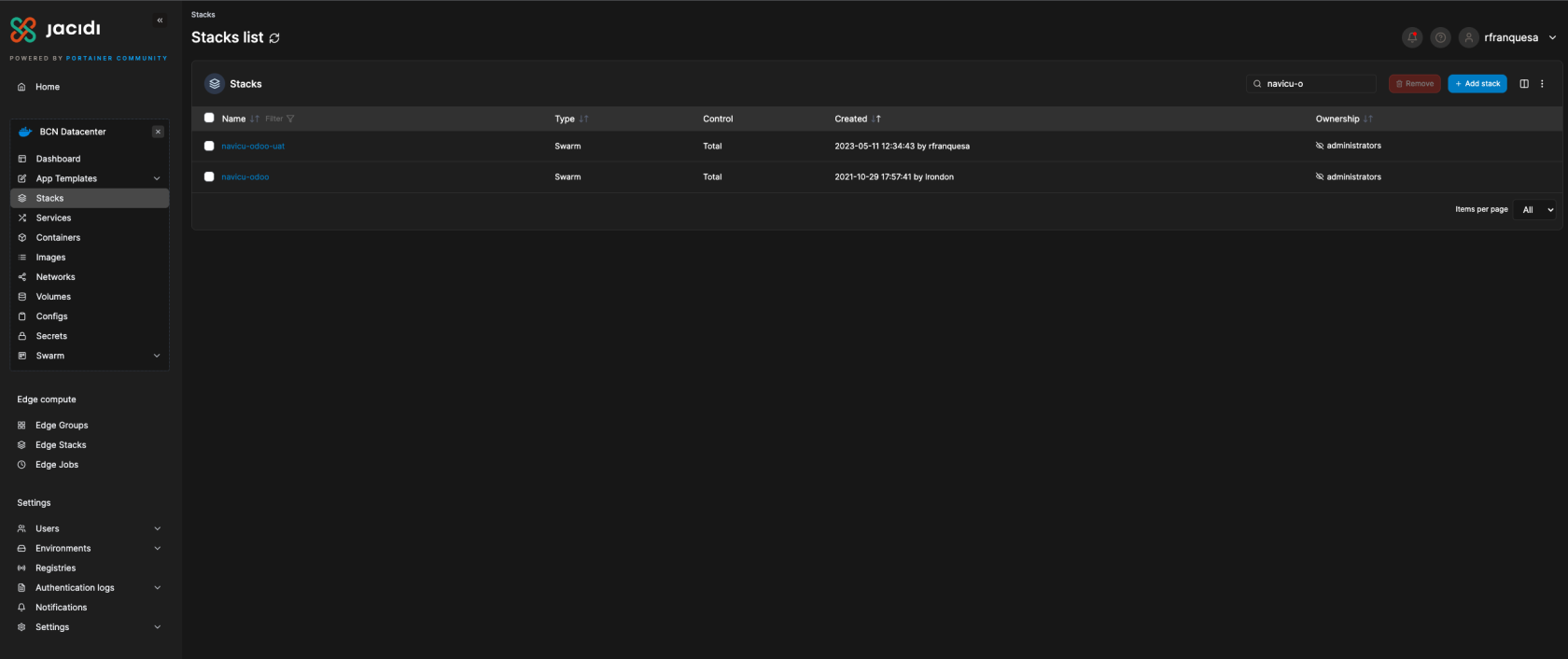
Select Stacks from the left menu.
[](https://books.jacidi.com/uploads/images/gallery/2023-05/image-1683802284193.png)
There should be 2 stacks navicu-odoo-uat and navicu-odoo (UAT and Production)
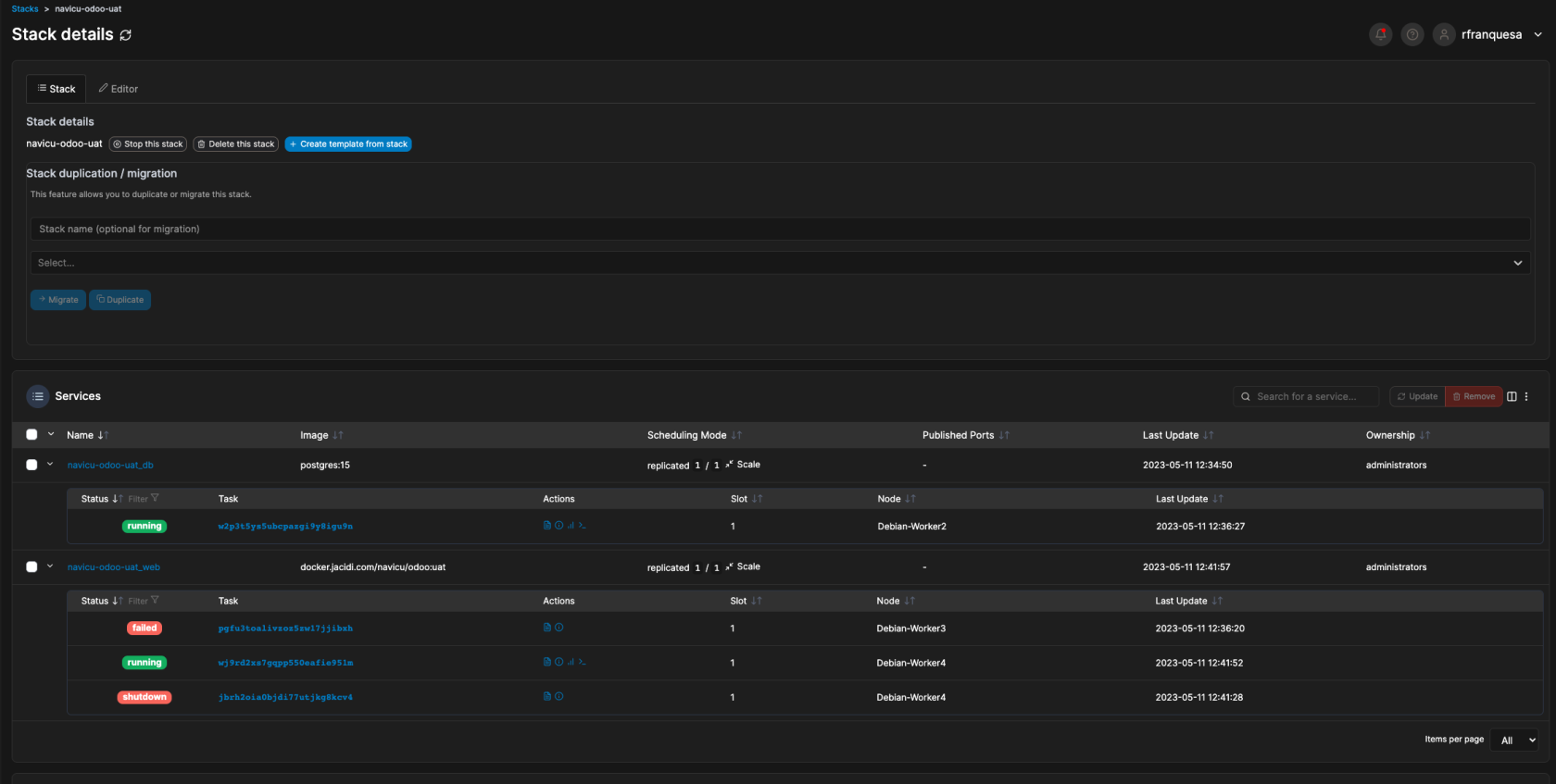
Once inside a stack you can see 2 services (Postgres DB and Odoo App) and a list of the containers for each service.
Only one container must be running per service, other containers are dead, failed or stopped.
[](https://books.jacidi.com/uploads/images/gallery/2023-05/image-1683802624346.png)
Do NOT modify compose file from editor TAB
Do NOT use remove service button or automatic deploy will no longer work
### Logs and Terminal
You can see logs from all container selecting action -> logs (first icon) and access terminal from each running container action -> terminal (last icon)
[](https://books.jacidi.com/uploads/images/gallery/2023-05/image-1683802735556.png)
Once inside terminal you can run odoo command directly using following syntax:
```shell
odoo -d $DB_NAME -r $USER -w $PASSWORD --db_host $HOST --stop-after-init
```
Variables $DB\_NAME $USER $PASSWORD $HOST are inherited from compose file. Must be used always to run any command. For example, run odoo install base: odoo -d $DB\_NAME -r $USER -w $PASSWORD --db\_host $HOST --stop-after-init -i base